
Resources > Microsoft New Nonprofit License Changes
Microsoft’s New Nonprofit Policy Explained
Microsoft 365 Suite: Nonproft Policy License Changes
Table of Contents:
- The End of Free Microsoft Licensing Grants
- What’s Changing about Microsoft’s Nonprofit License
- When Does Microsoft’s Nonprofit License Changes Take Effect?
- Why Is Microsoft Changing Nonprofit License Grants?
- What the New License Policy Means for Your Nonprofit
- Why Does Microsoft’s Nonprofit License Grant Matter?
- What Should Nonprofits Do Now?
- Step-by-Step Guide: Transitioning from Microsoft Business Premium to Basic
- What Is Microsoft 365 Business Basic?
- Making the Most of Microsoft 365 Business Basic
- Alternatives To Microsoft 365 Business Premium
- Final Thoughts
The End of Free Microsoft Licensing Grants
Here’s What You Need to Know
What’s Changing about Microsoft’s Nonprofit License
- Office 365 E1 (Nonprofit license)
- Microsoft 365 Business Premium (Nonprofit license)
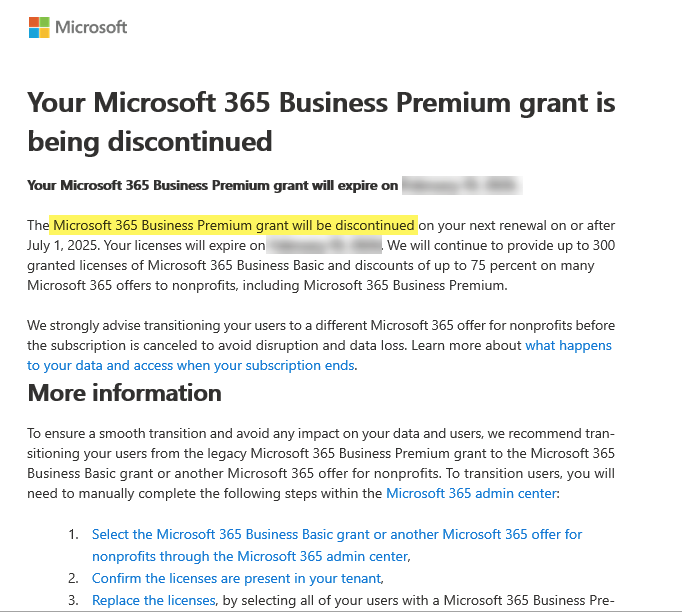
Microsoft sent nonprofit organizations an email notifying of the licensing change
When Does Microsoft’s Nonprofit License Changes Take Effect?
Why Is Microsoft Changing Nonprofit License Grants?
According to Microsoft, this move is intended to streamline nonprofit licensing and encourage greater security and compliance. Instead of managing both free and paid versions of licenses, they’re moving to a simplified, consistent structure using discounted pricing for all nonprofit customers.
While the reasoning is understandable, the decision does mean nonprofits will need to adapt financially. This is especially tricky for small or grassroots organizations with tight budgets. There are many who don’t support Microsoft’s decision. There is an active petition set up by a Canadian small nonprofit urging Microsoft to rescind their decision.
What the New License Policy Means for Your Nonprofit
- Unexpected subscription costs
- Loss of access to key Microsoft services and tools
- Disruption to services, collaboration, communication, and data storage
That’s why it’s critical to start planning now.
Why Does Microsoft’s Nonprofit License Grant Matter?
- Budget – Paid licensing, even discounted, could mean thousands of dollars annually depending on the size of your organization
- Software Access – Your team may lose access to desktop apps, data storage, security, or key features
- Operations – Licensing changes may require retraining, workflow updates, and communication planning
What Should Nonprofits Do Now?
Step-by-Step Guide: Transitioning from Microsoft Business Premium to Basic
Here’s how your organization can smoothly transition to Microsoft 365 Business Basic:
Step 1: Evaluate Your Current Usage
Take stock of who actually needs desktop applications, advanced security, or additional features. Many users may only need web-based tools for email, file storage, and document creation.
You can use the Microsoft 365 admin center to review license assignments and usage patterns.
Step 2: Purchase Business Basic Licenses
- Go to Microsoft 365 admin center > Billing
- Select “Details” next to Microsoft 365 Business Basic and buy the number of licenses you need.
Even though it says “purchase,” the first 300 licenses are free for eligible nonprofits.
Step 3: Reassign Licenses
Switch each user from Business Premium to Business Basic within your admin center. Be strategic—assign Premium licenses only to those who truly need them.
- Navigate to Users > Active users.
- For each user, go to Licenses and Apps, uncheck Business Premium, and check Business Basic.
Step 4: Remove Unused Premium Licenses
Once the transition is complete, remove or reduce any leftover Premium licenses to avoid unnecessary charges.
- Go to Billing > Your Products
- Click on Microsoft 365 Business Premium, then click remove licenses. (Ensure that users have been unassigned licenses or that may cause an error)
Step 5: Communicate the Transition
Notify your team of the changes. Help them adjust to using web-based tools, and offer training or support as needed to avoid confusion or downtime.
What Is Microsoft 365 Business Basic?
- Web and mobile versions of Word, Excel, PowerPoint, and Outlook
- Microsoft Teams for team chats, meetings, and collaboration
- Exchange Online with a 50 GB mailbox
- OneDrive with 1 TB of secure cloud storage
- SharePoint Online for document sharing and team collaboration
Making the Most of Microsoft 365 Business Basic
- Real-time collaboration using Word, Excel, and PowerPoint Online
- Stay connected with Microsoft Teams for messaging, meetings, and file sharing
- Secure document storage and version control using OneDrive and SharePoint
- Organize your workday with shared calendars, reminders, and scheduling via Outlook
Alternatives To Microsoft 365 Business Premium
Final Thoughts
While Microsoft’s changes may seem daunting at first, they don’t have to derail your nonprofit. With the right planning, communication, and tools in place, you can continue to operate efficiently, and even improve your cloud-based workflows.
Need help with what to do next? Reach out to our Microsoft experts. Our team can help you navigate the change and seamlessly transition.
We also provide additional services if Microsoft 365 Business Basic just isn’t cutting it. Learn more.